Hugo Documentation
Use this practical guide to set up Hugo safely and choose the features that fit your server. For every command option, use the command reference.
Start here
Choose your setup path
Most servers can configure Hugo feature by feature. The preset template is a separate, more opinionated path for a brand-new server.
/setup for the full guided flow.
Use the Hugo server template
Start from Hugo's preset structure, enable Discord Community, then use /setupcopy to copy its onboarding and configuration.
Quick Start
- Invite Hugo, granting only the Discord permissions needed for the features you plan to use.
- Put Hugo's highest role above every role it must assign, remove, create, or reposition.
- Run
/setupfor the guided full-server setup. Use itsstepoption to resume from a specific stage. - Run
/dashboardfor browser-based configuration, or use slash commands for quick changes and actions. - Run
/helpfor the command reference, dashboard, and support links.
Prepare for the Full Setup Wizard
/setup is Hugo's comprehensive verification-and-onboarding workflow. You do not need this whole checklist to use an individual feature such as reminders, stream alerts, or a single automation.
Prepare first
Create verified and unverified roles, then position Hugo above both. Hugo also needs to be above any jail, color, flair, reaction, autorole, or moderation target role it will manage.
Useful channels
Separate error, chat-edit/delete, and general activity logs; a captcha channel; a color-role channel; and an event-message channel keep the setup understandable and staff-only activity out of public chat.
Public member messages
Choose a public channel for verified-member joins and departures. Keeping unverified churn in a bot channel makes the public server feel calmer without hiding meaningful member activity.
Test safely
Keep a private test channel and a disposable test role. Use them before enabling a moderation rule, role action, or recurring message for the whole server.
Permissions and Role Hierarchy
- Posting embeds: Hugo needs
View Channel,Send Messages,Embed Links, and sometimesAttach Filesin the target channel. - Managing roles: Hugo needs
Manage Roles, and its highest role must be above every role it assigns, removes, creates, or repositions. - Moderation: Kick, ban, timeout, delete, and purge features need the matching Discord permissions and valid hierarchy over the target member.
- Channels and threads: Duplicate needs
Manage Channels. Group access syncing needsManage Rolesin each affected channel, because Discord uses that permission to edit channel permission overwrites. Voice generator needsManage Channels, plusView Channel,Connect, andMove Memberswhere it creates and moves users. Autothread needsSend Messages,Create Public Threads,Send Messages in Threads, andManage Messagesif messages are deleted. Sticky messages needView Channel,Send Messages, andManage Messages. - Invite tracking: Hugo needs
Manage Serverpermission to read the server invite list. Discord only exposes invite information through that permission. Hugo only uses it to read the server's invite list.
Logs
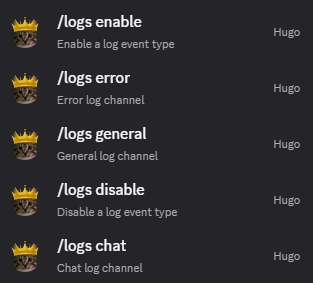
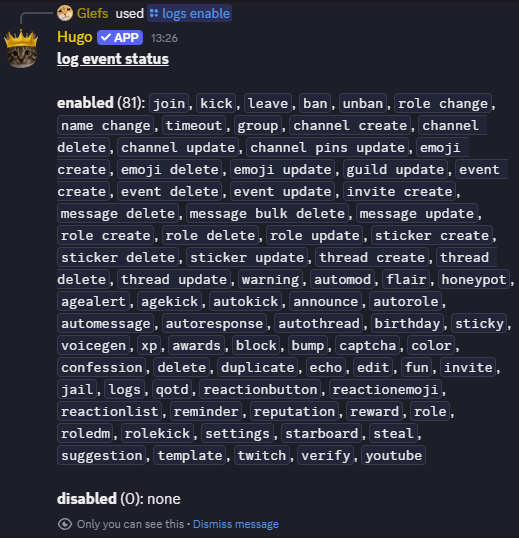
Use /logs general, /logs chat, and /logs error to keep different kinds of activity separate. Chat logs are for message edits and deletes; error logs show failed bot work that needs attention. Then enable only the event types your staff will actually use.
Configuration Basics
Use the dashboard for larger setup work
The dashboard is best for settings with many fields, message previews, role/channel pickers, and repeated configuration. Log in with Discord, choose a server where you have Manage Server, then open the section you want to edit.
Use slash commands for quick changes
Slash commands are best for one-off actions, moderation, testing, and small setting changes. The full option list is on the commands page.
Start with logs
Configure /logs early. Error logs tell you when Hugo cannot post, assign roles, moderate users, or complete a task. Chat logs and general logs should be visible only to trusted moderators.
Test before relying on automation
Use /emulate to test announcement events. For other features, use dashboard previews where available and a small test channel before enabling broad moderation, role, or message automation.
Troubleshooting
Hugo cannot assign or remove a role
Check Manage Roles, then move Hugo's highest role above the target role. This is the most common cause even when the command looks correct.
Hugo cannot post an embed
Check channel permissions for View Channel, Send Messages, Embed Links, and Attach Files. Also check whether the feature is sending to the channel you expect.
The dashboard does not show your server
Make sure Hugo is in the server, you are logged in with the right Discord account, and your account has Manage Server or administrator access there.
An automation is not firing
Check that the feature is enabled, channel and role filters match the test case, cooldowns are not blocking it, and Hugo has permissions in both the source and output channels.
Template Setup
Use this path only for a new server created from Hugo's server template. It copies a preset onboarding flow, configuration, logs, announcements, colors, schedules, and supporting assets.
-
Create the server from the template. Complete this guide before reshaping the channel and role layout. The template deliberately includes two
#ruleschannels and two#colorchannels: one pair is for unverified members and the other for verified members.#gateis the captcha channel,#voidis the honeypot channel, and the filler channels satisfy Discord onboarding's channel and default-channel requirements.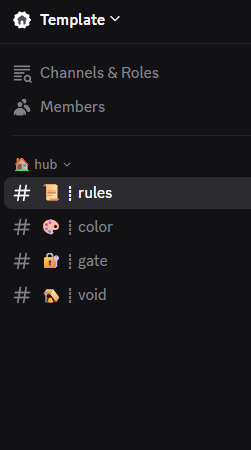
Unverified members see a deliberately limited channel list until they pass verification. 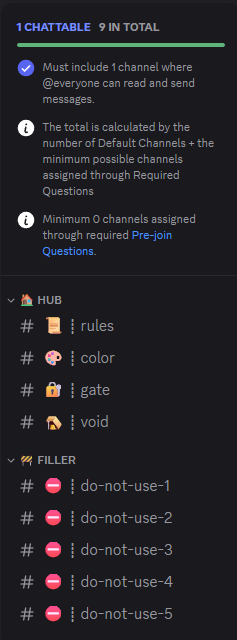
Keep the filler channels until onboarding is complete; they serve Discord's setup requirements. -
Invite Hugo and set its roles. Invite Hugo, give it the template's
@Botrole, then place@Hugohigh enough in Server Settings → Roles to manage every role Hugo needs to touch. You may need to open#gateto see Hugo.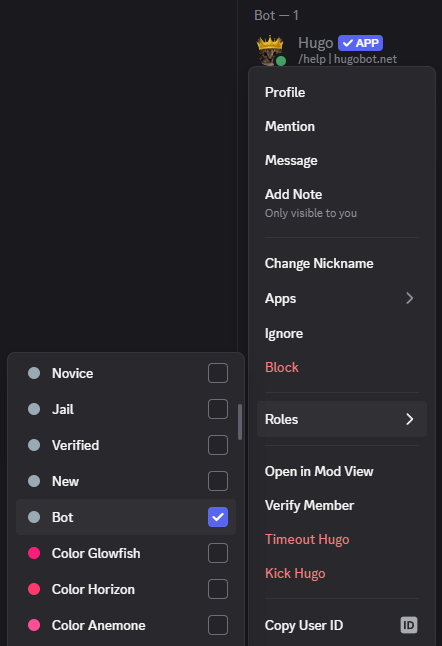
The template's @Botrole gives Hugo its channel access.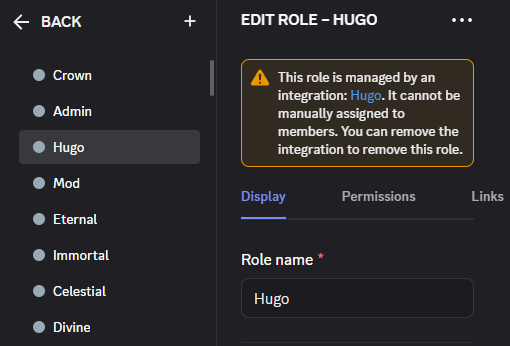
Role hierarchy is what lets Hugo manage verification, color, and moderation roles. -
Enable Community and complete Discord onboarding. In Server Settings, select Enable Community. When Discord asks for a rules or guidelines channel, choose the second-from-the-top
#ruleschannel, which is the unverified one, then finish the remaining Community prompts with the safe@everyonedefaults.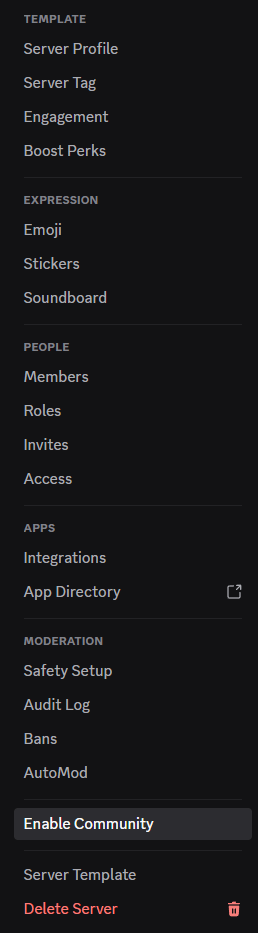
Discord onboarding is available only on Community servers. 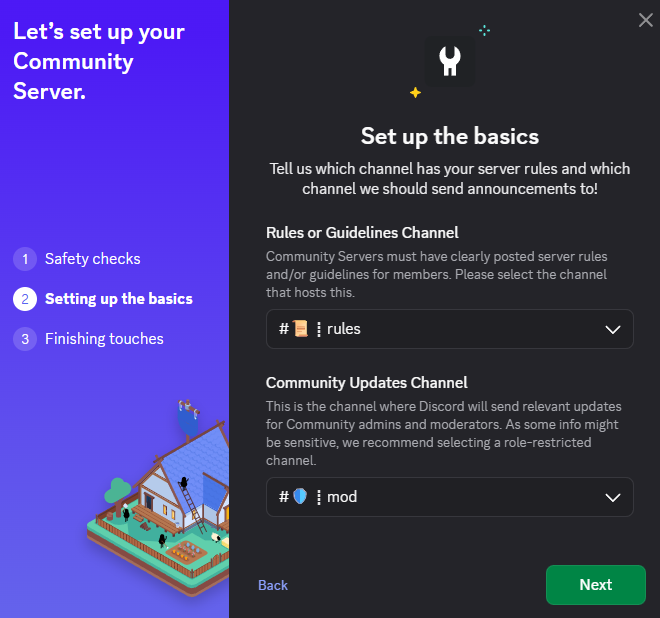
Select the second-from-the-top #ruleschannel for the rules channel.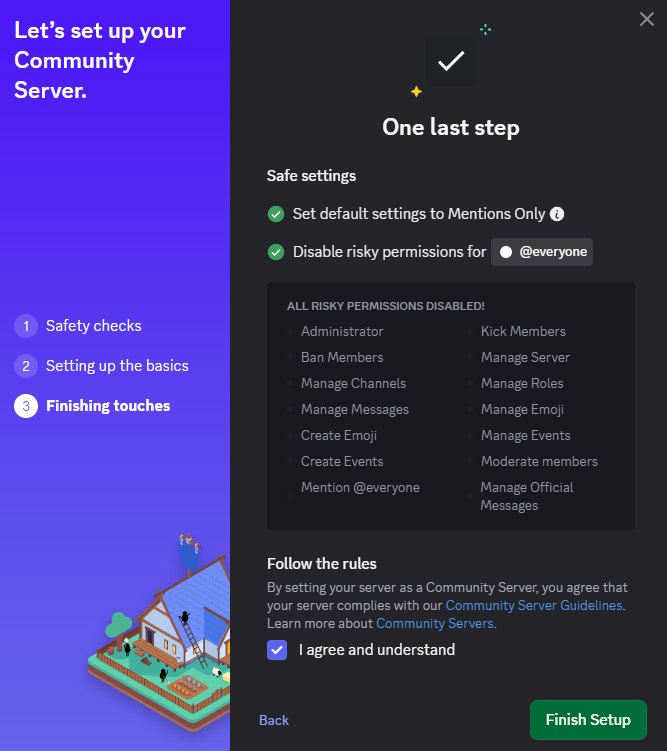
Finish Community setup before copying Hugo's onboarding configuration. -
Run
/setupcopyonly after the preflight is ready. The person running it and Hugo both needManage Server,Manage Roles, andManage Expressions. Hugo checks these requirements before copying anything; if one is missing, it leaves the server unchanged.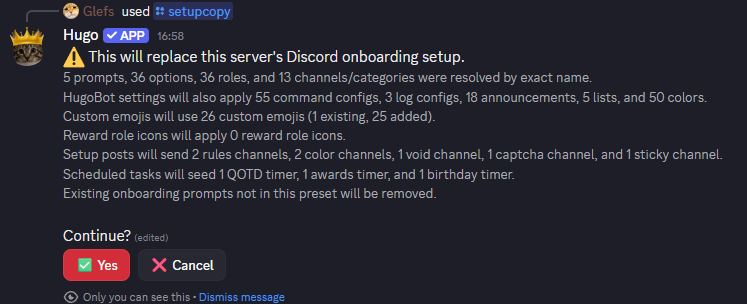
After the preflight passes, press Continue and wait for the copy to finish.
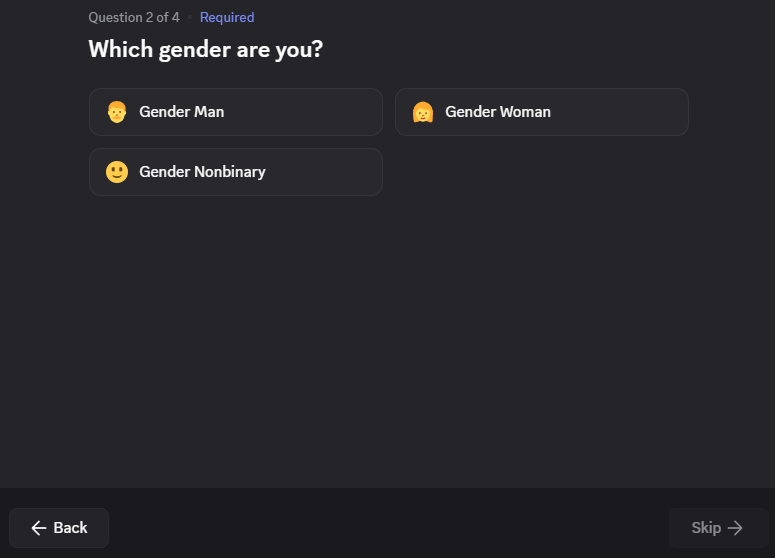
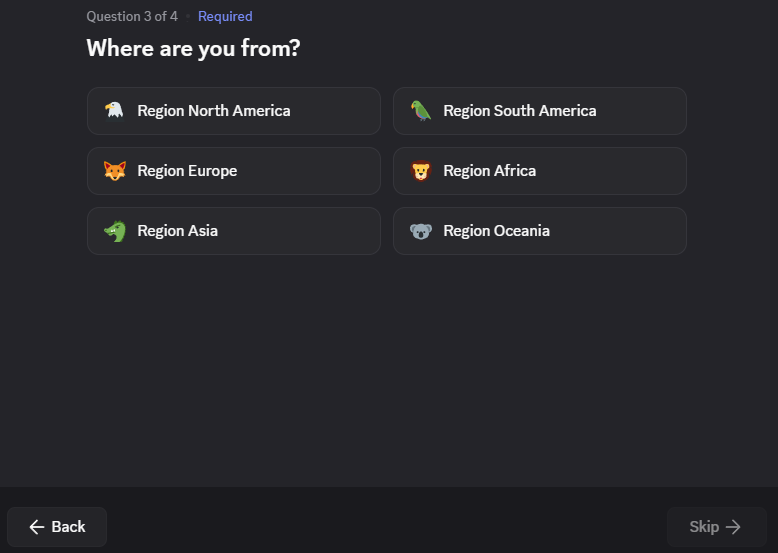
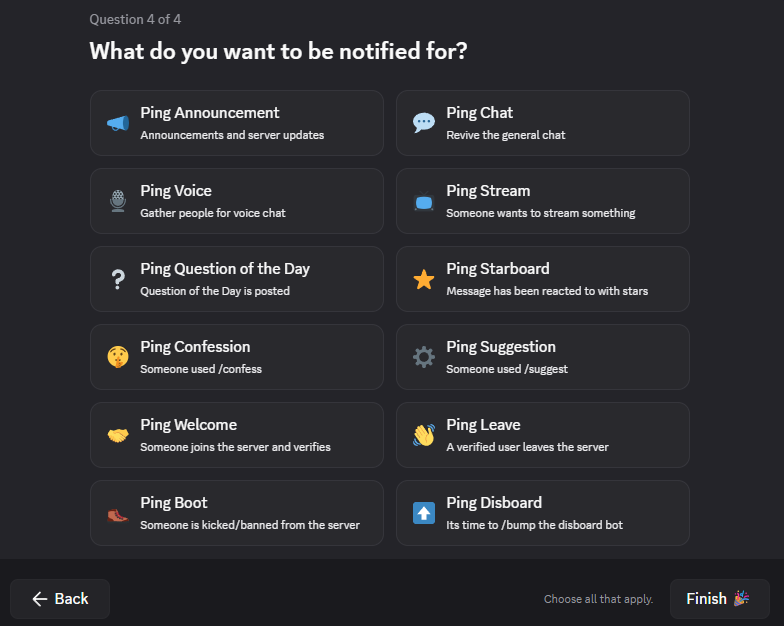
See what a new member sees during the copied onboarding
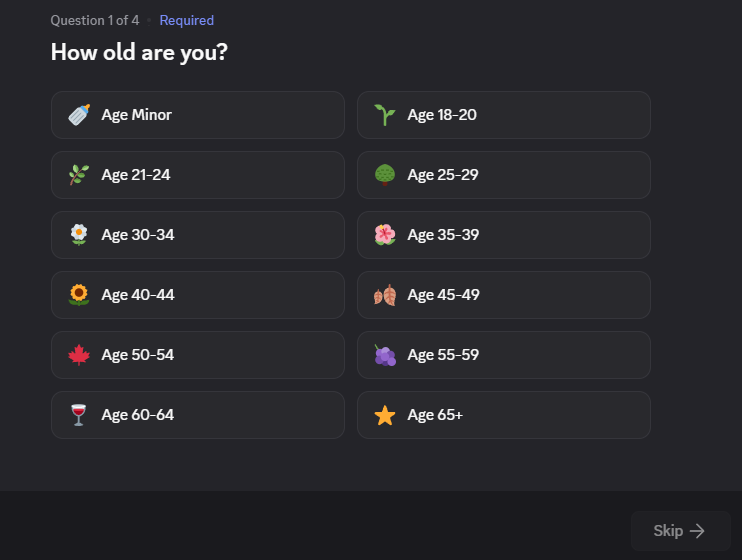
Access and member lifecycle
Messages, Templates, and Replacements
Many Hugo features can send custom text, embeds, titles, footers, and messages in a chosen channel. Save a reusable message with /template when several features should use the same wording, then see Templates, Echo, and Edit for the message-building tools.
The dashboard shows only the replacements supported by the field you are editing. Common member replacements include {tag}, {name}, and {user}; other values, such as an invite, role, reason, or rank, depend on the feature and event.
Some message fields support random variants. Separate alternatives with ~ so Hugo can choose a different line each time.
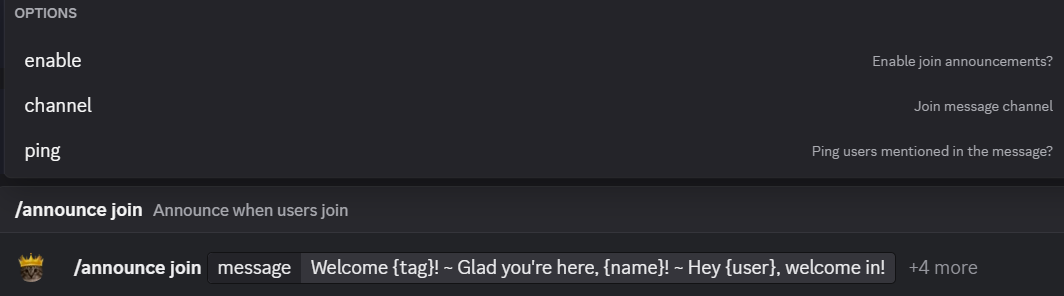
Welcome {tag}! ~ Glad you're here, {name}! ~ Hey {user}, welcome in!Settings
Use /settings for server-wide Hugo behavior such as timezone, log name formatting, thread archive duration, and whether Hugo should resolve channels and roles by name when a saved Discord ID no longer works.
The resolve-by-name option can help when you replace a channel without reconfiguring every command that points to it. For example, duplicate #general, delete the old channel to wipe its history, and rename the replacement back to #general. Use name fallback only while the replacement has a unique, exact matching name: if duplicates exist, Hugo can attach a feature to the wrong resource. Once saved IDs have updated, turn it off unless you still need it.
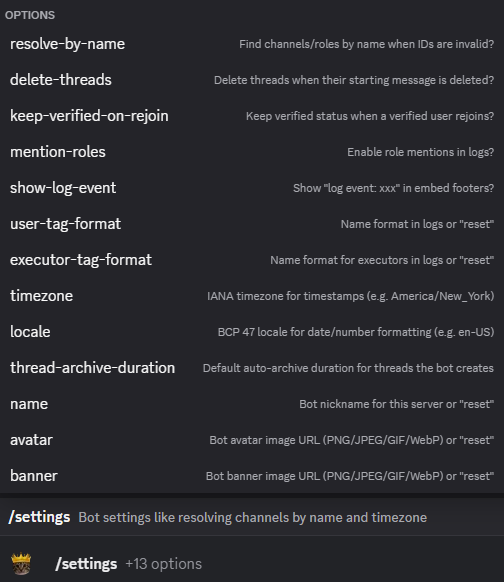
/settings to control server-wide Hugo behavior such as timezone, name formatting, and resolve-by-name behavior.Verification Roles
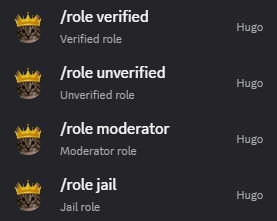
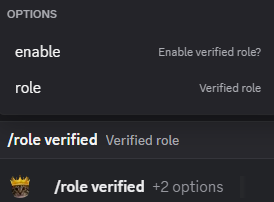
Use /role to define Hugo's main @Verified, @Unverified, @Moderator, and @Jail roles. Put Hugo above all of them in Discord's role hierarchy before saving the configuration.
Verified access
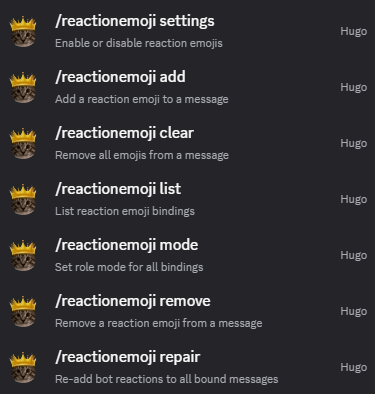
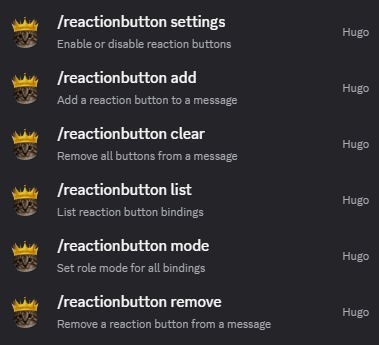
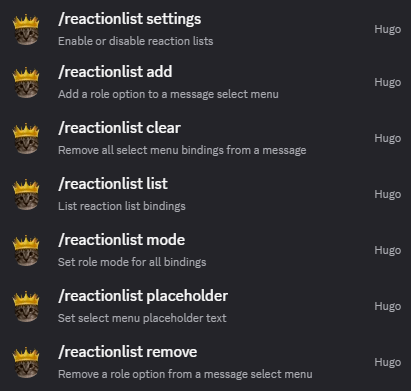
Grant @Verified through captcha, /verify, or a reaction-role setup. Choose emoji reactions, buttons, or a dropdown list based on the member experience you want.
Unverified access
Once configured and enabled, Hugo gives @Unverified to members who join unverified. Do not add it through /autorole.
Ordinary join roles
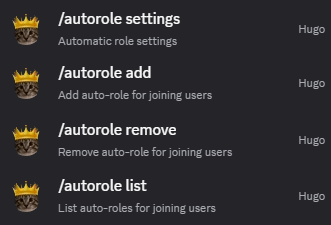
Use /autorole only for ordinary default roles, such as notification roles. Use /color default for a default color role instead.
Moderator and jail roles
The moderator role informs Group, Starboard, and Flair behavior. When you jail a member, Hugo removes verified and unverified access; run /jail again to release them. Create a private #jail channel and restrict the other channels for the jail role yourself.
Enable the reaction-role system you choose before adding entries. That lets you pause it later without deleting each entry. Enable /autorole before adding normal join roles for the same reason.
Compare reaction-role choices
Captcha
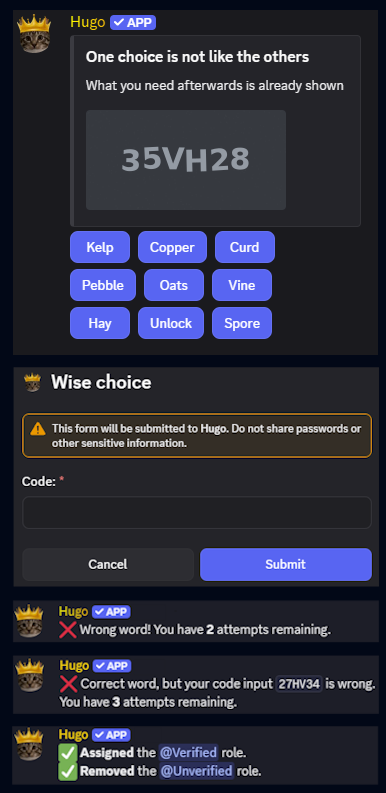
Use /captcha post to post a verification message that grants the verified role after a member succeeds. The regular version asks the member to read an image and type its code.
The fake-button version presents several buttons, with one correct choice, instead of announcing that it is a captcha. It trades a more familiar verification experience for more friction against automated joiners.
Choose enforcement deliberately. /captcha settings can kick or ban members who do not solve the captcha in time or exceed wrong-answer limits. Test the member experience before applying punishments.
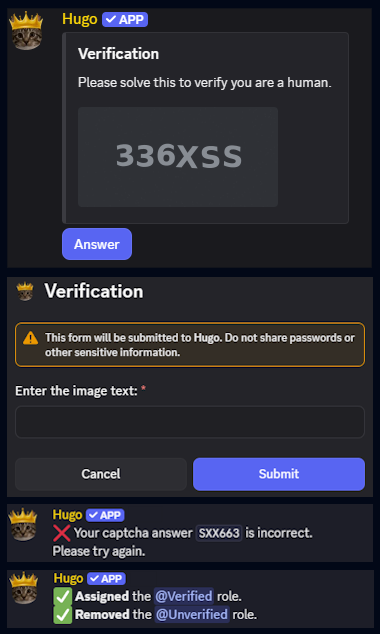
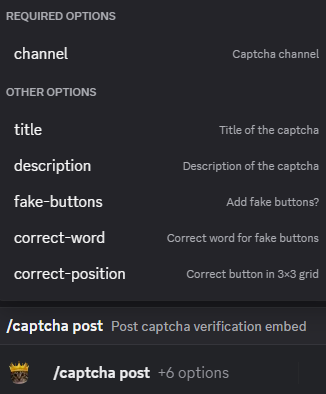
/captcha post to publish the version you chose.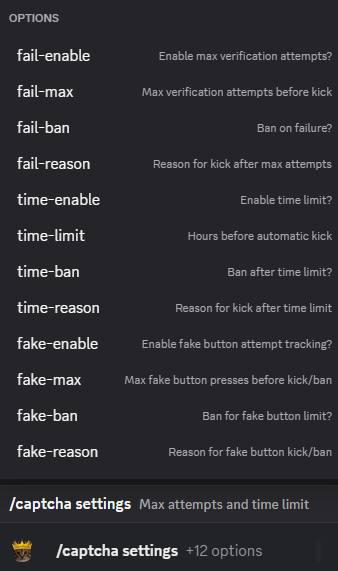
Announcements
Use /announce to configure member-event messages such as joins, rejoins, leaves, bans, kicks, timeouts, jail events, and verification. Hugo has regular event announcements and verified-only announcements for some events, such as leave and leave-verified.
Those are separate announcement types. If both leave and leave-verified are enabled, a verified member leaving can send both messages: one to the dedicated arrival/departure bot channel, and one to the public channel where people will actually notice.
The point is to keep quick unverified join/leave churn out of the main server chat while still welcoming people who actually verify and making real member departures visible.
Each announcement shows its supported replacements when you open it with no options. Common ones are {tag}, {name}, and {user}. Join and rejoin messages can also use inviter replacements such as {invitertag}; moderation events can use moderator, reason, and event-specific timing replacements.
Use /emulate to test announcement outputs without waiting for the real event to happen.
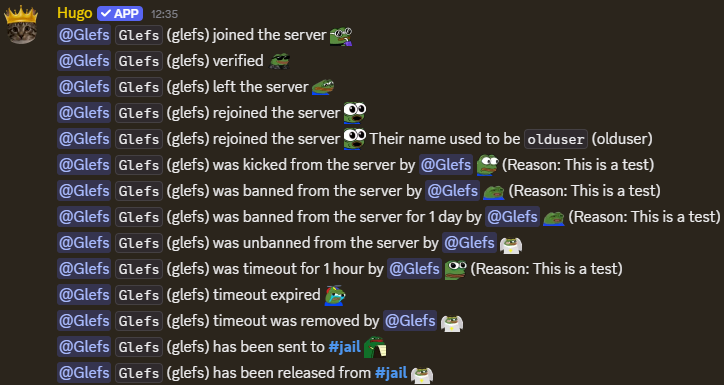
/emulate before relying on a live join, leave, or moderation event.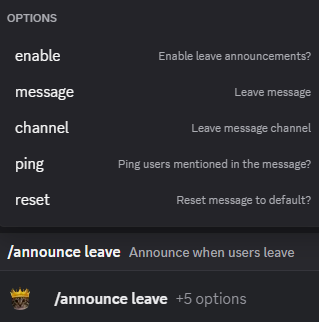
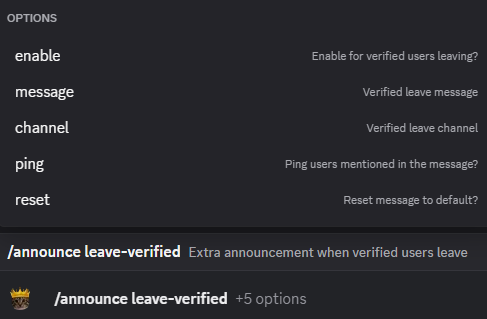
Invite Tracking
Hugo can show how many members someone has invited with /invites and publish a server ranking with /inviteboard. Configure and enable those member commands separately with /invite invites and /invite inviteboard, including their cooldowns, channel limits, visibility, and level or booster requirements.
Invite tracking depends on Hugo being allowed to read the server's invite list. Give it Manage Server, and expect counts to reflect invites Hugo can observe rather than retroactively reconstructing every past invite. Hugo credits an inviter only when it can identify one confidently; simultaneous joins or delayed Discord data can leave a join unassigned rather than crediting the wrong person.
Automation
Before you automate a busy channel
For most automations, configure the feature settings, add one narrowly scoped entry, test it in a safe channel, then enable it for the real channel. This keeps a typo, broad trigger, or role mismatch from affecting the whole server.
Auto Messages
Use /automessage for recurring messages that Hugo should send on a schedule, such as rules reminders, event reminders, rotating prompts, or channel housekeeping posts.
Use /automessage add to create a new automessage by choosing a title, channel, interval, message or saved /template, and optional delay before the first send. See messages and replacements for reusable templates and random variants.
Use /automessage settings to turn the feature on before using /automessage add. This allows you to disable all automessages at once later.
If you have several enabled automessages, /automessage spread can space them evenly across a window so they do not all fire at nearly the same time.
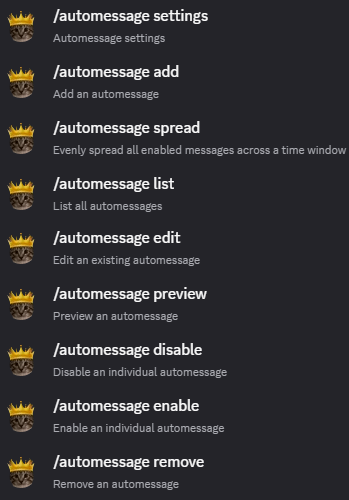
/automessage to manage scheduled recurring messages.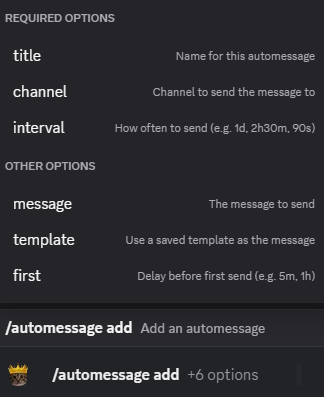
/automessage add to choose the title, channel, interval, and message or template.Auto React
Use /autoreact when Hugo should add the same emoji reactions to every new member message in a selected channel. This is useful for quick voting lanes, staff review channels, gallery feedback, or lightweight moderation workflows where every post should start with the same reactions.
Use /autoreact add to create a channel entry with one text channel and a list of emojis separated by spaces or commas. Each channel can only have one autoreact entry, so the channel itself is the identifier when you edit, enable, disable, remove, or list a specific entry.
Use /autoreact settings to turn the feature on before using /autoreact add. This allows you to disable all autoreact entries at once later, while still keeping the saved channel and emoji configuration.
Auto Responses
Use /autoresponse when Hugo should respond automatically to messages that match a trigger. This is useful for common questions, rule reminders, keyword replies, or deleting repeated nuisance phrases after answering them.
Use /autoresponse add to create a named response with trigger text, a response message or saved template, and optional behavior such as replying to the message, deleting the trigger message, limiting it to one channel, using regex, requiring an exact match, or making the trigger case-sensitive. A delete-trigger entry needs Manage Messages in that channel; test regex and delete-trigger entries in a private channel first.
Use /autoresponse settings to turn the whole feature on before using /autoresponse add. This allows you to disable all autoresponses at once later.
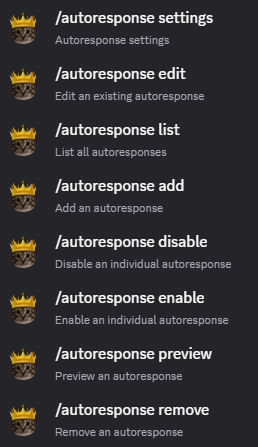
/autoresponse to manage automatic replies for matching messages.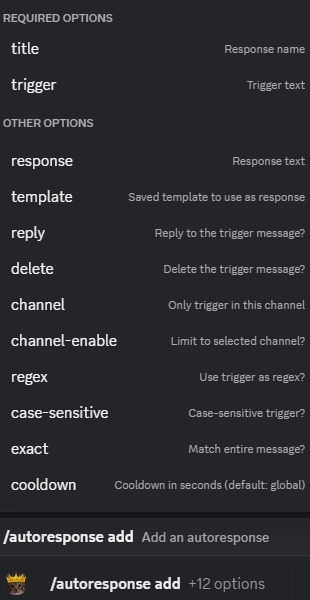
/autoresponse add to set the trigger, response, and optional matching behavior.Role DMs
Use /roledm when Hugo should DM a member after they gain a specific role. This is useful for onboarding instructions, role-specific rules, access notes, or explaining what a newly selected role actually unlocks.
Use /roledm settings to turn role DMs on before using /roledm add. This allows you to disable all role DMs at once later without using /roledm remove.
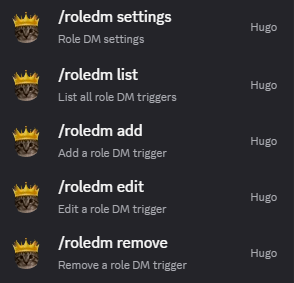
/roledm to manage DM messages that fire when members gain specific roles.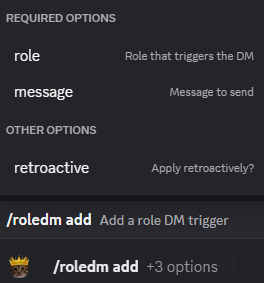
/roledm add to connect a role to the DM message members should receive. Set retroactive to true if you want the DM to be sent to members who already have the role.Bump Reminder
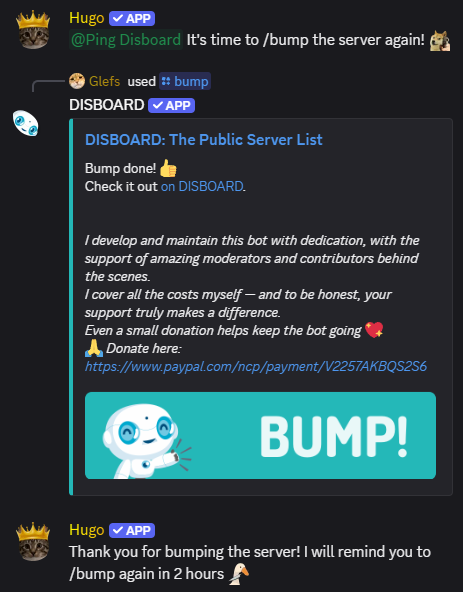
Use /bump for Disboard bump reminders. When Disboard posts its successful bump confirmation, Hugo can send your configured bump message immediately and schedule a reminder two hours later in the same channel.
Use the enable option on /bump to turn the feature on or off, bump to set the message sent after a successful bump, and remind to set the reminder message that tells members it is time to bump again.
You can make the bump and reminder messages use random variants by separating them with ~, for example: It's time to /bump the server again! ~ Bump time. ~ Please /bump the server when you can.
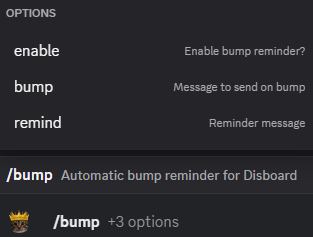
/bump to control the bump message, reminder message, and whether the feature is enabled.Auto Thread
Use /autothread for feed-style channels such as #memes, #selfies, art, clips, or screenshots. For each channel, choose whether text-only posts and media or link posts should create a thread, be deleted, or be left alone. By default, Hugo deletes text-only posts and creates a thread for media or link posts.
Threads keep replies attached to the original post, so members can react and discuss without burying the next post in the channel feed. If you choose a delete action, Hugo needs Manage Messages in that channel.
Use /autothread settings to enable automatic threads and set the default thread title or thread message. This allows you to disable all automatic threads later without using /autothread remove. Per-channel entries can still override the defaults.
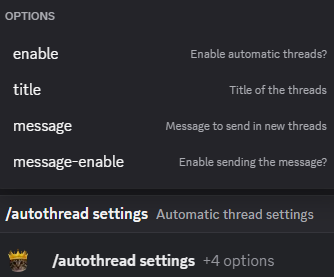
/autothread settings to control the global defaults for automatic threads.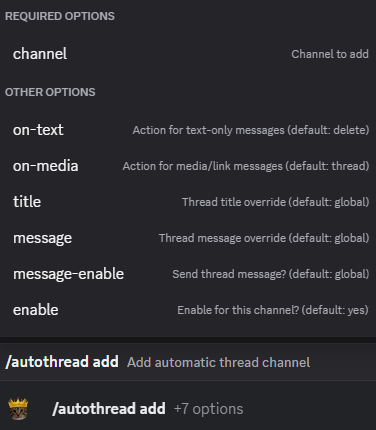
/autothread add to configure the per-channel thread behavior you want.Sticky Messages
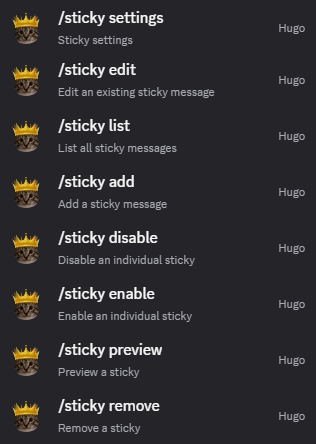
Use /sticky when a channel should keep an important prompt, rule, or format visible at the bottom. After member activity, Hugo reposts the sticky message once the configured cooldown allows, so new members see what they are supposed to do without scrolling back through the channel history.
Use /sticky settings to enable sticky messages before using /sticky add. This allows you to disable all sticky messages later without using /sticky remove or /sticky disable on all of them.
For example, an #introductions channel can use a sticky introduction template so everyone follows the same format:
Name:
Age:
Gender:
Location:
About Me:
/sticky to manage sticky messages that stay visible in active channels.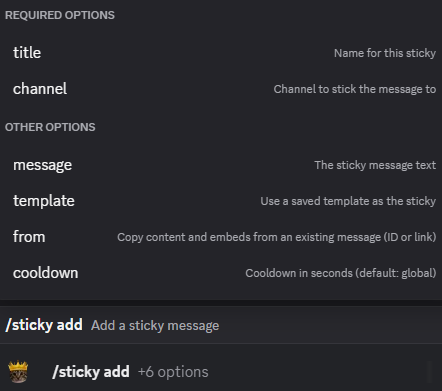
/sticky add to choose the channel and message that should be reposted.Channels and roles
Voice Generator
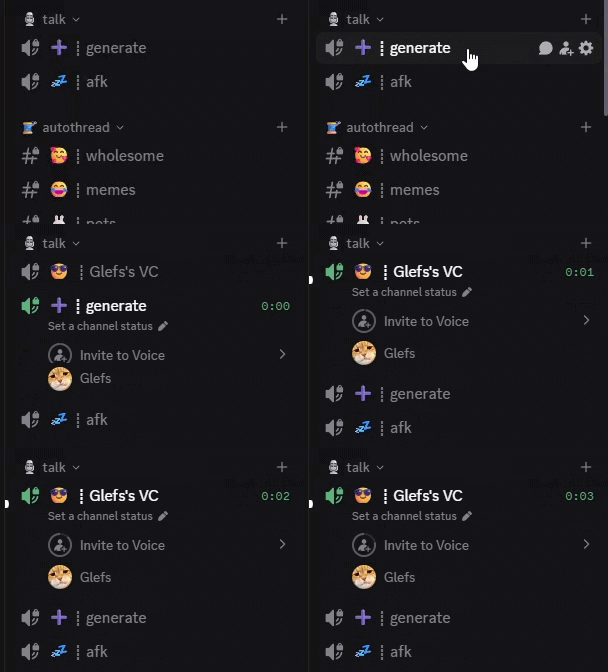
Use /voicegen to turn a voice channel into a generator. When a member joins that generator channel, Hugo creates a temporary personal voice channel for them, moves them into it, and deletes the spawned channel again once it is empty.
Use /voicegen settings to enable voice generators before using /voicegen add. This allows you to disable all voice generators later without using /voicegen remove or /voicegen disable on all of them.
Discord calls the parent "folder" a category. Spawned channels are created under the same parent category as the generator channel, so they inherit that category's permissions. Hugo also copies the generator channel's user limit and bitrate, then places the new channel right after the generator.
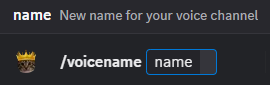
Use /voicename to let the owner of a spawned channel rename it. Only the user who generated that channel can rename it, and Discord may rate-limit repeated voice channel renames.
/voicename to let the owner of a spawned channel rename it.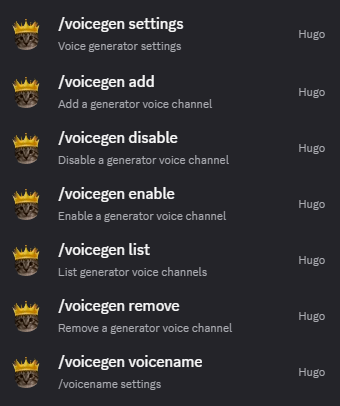
/voicegen to manage generator channels and their defaults.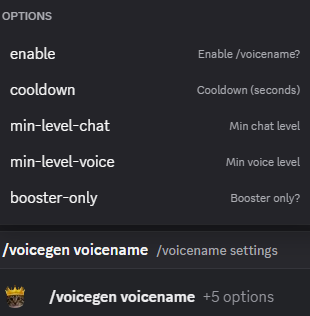
/voicegen and /voicename work together when you want users to have private temporary channels they can rename themselves.Duplicate Channels
Use /duplicate to create a new channel using another channel's permission setup, or to copy one channel's permissions onto an existing target channel. It works with channel types such as text, voice, announcement, stage, forum, and category channels.
The main use is copying category permissions, which Discord does not let you do by default. Instead of manually rebuilding every permission overwrite, you can configure one channel or category correctly and copy that setup wherever it is needed. For an existing target, Hugo replaces its complete permission-overwrite list with the source's, so review the confirmation before continuing.
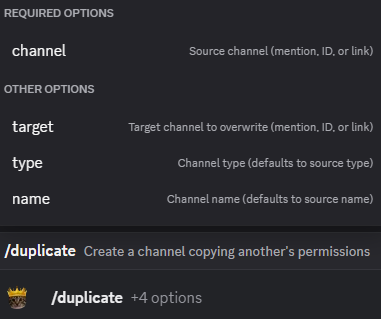
/duplicate to copy channel or category permission setups instead of rebuilding them manually. Enter either a target channel to overwrite or name and type for a new one.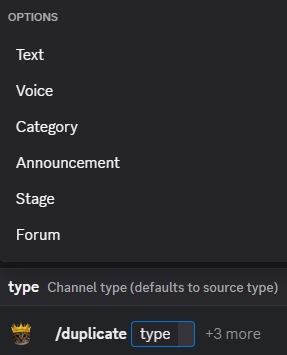
Custom Emoji Import
Use /steal to add a custom emoji from another server to this one. Both Hugo and the person running the command need Manage Expressions.
Moderation and safety
Everyday Moderation and Jail
Use /ban, /kick, or /timeout for one member at a time; each supports an optional reason, and /ban can be temporary. Use /delete to bulk-delete messages with user, channel, timeframe, and reply filters. /purge can kick or ban members by reward role, inactivity, or XP after its confirmation prompt.
Use /jail only after configuring the jail role in /role and creating a private jail channel. When you jail someone, Hugo removes their verified and unverified roles and their Group channel access. Run /jail again to remove the jail role and restore the appropriate access; Discord channel visibility for the jail role is still your responsibility.
Check the target and hierarchy first. Kicks, bans, timeouts, bulk deletion, purges, and jail actions need the matching Discord permissions and Hugo must be above the target member or role. Start with a narrow test rather than a broad purge filter.
Account Age
Use /agekick when you want Hugo to automatically kick or ban accounts that are too new. This is useful for blocking fresh alt accounts, raid accounts, and obvious throwaways before they can settle into the server.
If you do not want automatic punishment, use /agealert instead. It posts an alert when a fresh account joins, so moderators can review the member manually and decide whether the account is actually a problem.
Start with alerts when possible. Account age is only a signal, not proof of abuse. Use /agealert to validate a threshold before enabling automatic kick or ban actions.
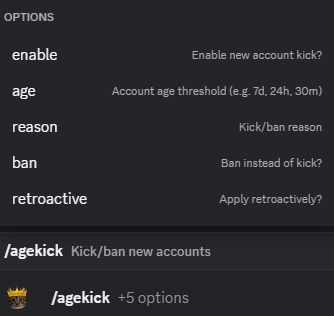
/agekick when you want fresh accounts to be kicked or banned automatically.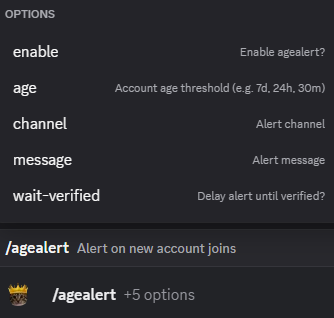
/agealert when you only want moderators to be notified about fresh accounts joining.Role Kick
Use /rolekick to automatically kick or ban members who receive specific forbidden roles. Use /rolekick settings to turn it on before using /rolekick add. This allows you to disable it later without using /rolekick remove on all roles. You can choose kick or ban mode, and optionally apply it retroactively to members who already have that role.
One use is an age-restricted community where an Age Minor role comes from reaction roles or Discord onboarding. If that role conflicts with the server's rules, Hugo can enforce the policy consistently instead of requiring moderators to watch every role change.
This can act retroactively. Confirm the forbidden-role list and choose kick or ban deliberately before enabling /rolekick.
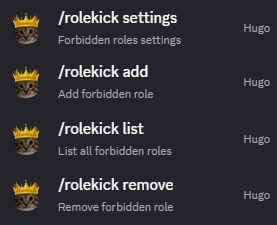
/rolekick to manage forbidden-role moderation without watching for those roles by hand.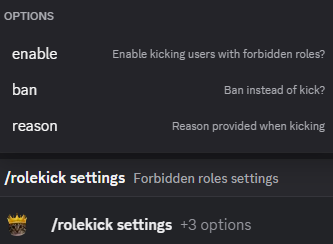
/rolekick settings to enable the feature and choose whether it kicks or bans.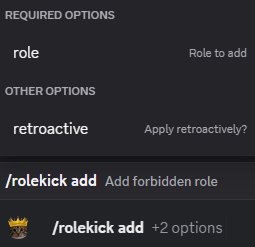
/rolekick add to choose which roles should trigger that punishment.Auto Kick
Use /autokick when you want new joins to prove they are active by sending a minimum number of messages within a set time. If they do not hit the required message count before the timer expires, Hugo can kick or ban them with your configured reason.
Hugo starts tracking new joins while /autokick is enabled. When you enable it, Hugo also begins tracking current members who joined within the configured time window; it does not reconstruct messages sent before tracking began.
Test the threshold and window first. This feature can kick or ban members who do not meet the activity requirement, including recent members already in the server when you turn it on.
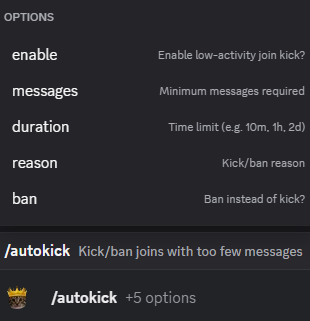
/autokick to set the message requirement, time window, and punishment for inactive new joins.AutoMod
Use /automod to remove problem messages before moderators have to handle them manually. Hugo can check for bad words, repeated text, server invites, external links, excessive caps, emojis, spoilers, mentions, zalgo text, and message spam.
Use /automod settings to enable AutoMod and configure warning messages sent by DM or in the same channel. Use /automod rule to choose which rules are enabled and whether each one should delete the message, delete and warn the member, or stay disabled.
Use /automod add-action to add escalation actions when a member racks up enough AutoMod infractions in a time window. Escalations can timeout, kick, or ban, and /automod remove-action and /automod list-actions manage that escalation list.
Server moderators and the server owner are ignored by AutoMod. Message deletion needs Manage Messages in the affected channel, and escalation actions need the matching Moderate Members, Kick Members, or Ban Members permission plus normal Discord role hierarchy.
Introduce rules one at a time. A broad rule can remove ordinary conversation, and an escalation can punish a member after repeated matches. Start in a small channel and review the logs before enabling every rule.
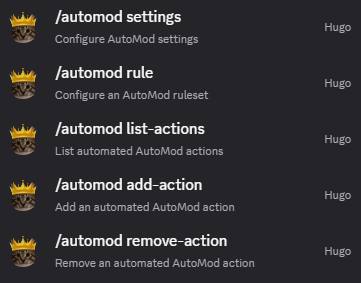
/automod to manage message filtering and escalation behavior.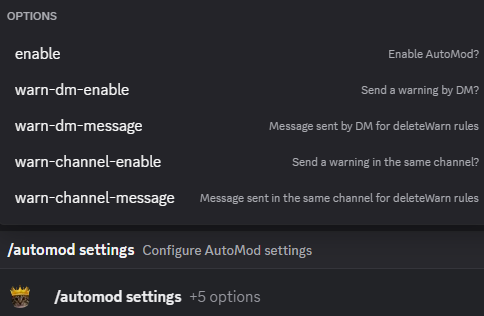
/automod settings to enable the system and choose how warnings are sent.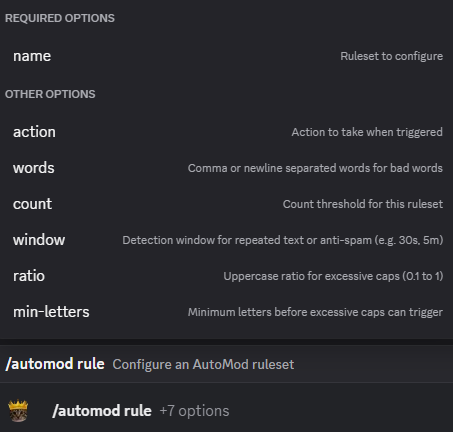
/automod rule to decide which rules are enabled and what each one does.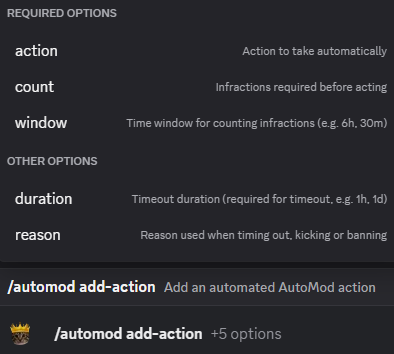
/automod add-action to add timeout, kick, or ban escalations after repeated infractions.Warnings
Use /warn to issue a warning to a member with a reason, optional DM or channel notification, and optional expiry. Moderators can use /warnings to view warning history for one user, one moderator, or the whole server.
Use /warning settings to turn the warning system on or off, set the moderator notification channel, and choose the default expiry for new warnings. Use /warning add-threshold, /warning remove-threshold, and /warning list-thresholds to automate timeout, kick, or ban actions after enough active warnings.
Use /warning edit, /warning remove, and /warning clear when you need to correct, deactivate, or clear warning records without deleting the whole warning system.
Review thresholds with staff. Warning thresholds can automatically timeout, kick, or ban members, so make sure expiry and escalation windows match your moderation policy.
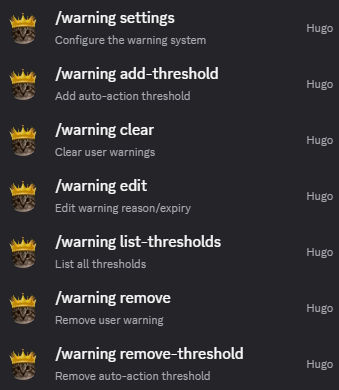
/warning command group to edit, remove, clear, and manage warning thresholds.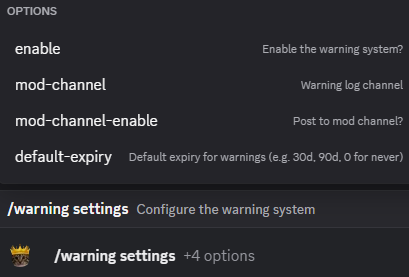
/warning settings to control the warning system defaults and notification behavior.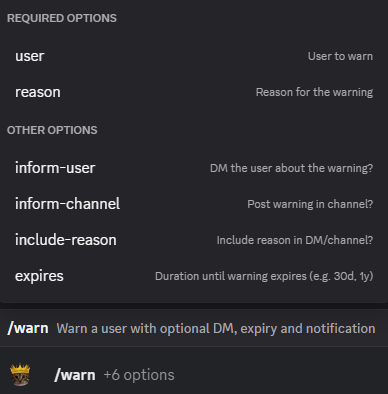
/warn to issue a warning with a reason, notification, and optional expiry.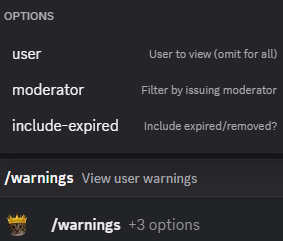
/warnings to review warning history for a user, moderator, or the whole server.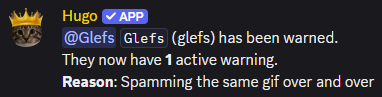
Honeypot
Use /honeypot for trap channels that real members should not be using. If a non-bot user sends a message in one of those channels, Hugo attempts to delete it, then kicks or bans the member according to your settings.
Use /honeypot settings to enable the feature, choose kick or ban mode, and set the moderation reason. Use /honeypot add to add trap channels and optionally post a bait message, then use /honeypot remove and /honeypot list to manage the channel list.
This is useful for catching bots or raiders that blindly post in every visible channel. Hugo needs Kick Members in kick mode or Ban Members in ban mode, plus role hierarchy over the target. Give Hugo Manage Messages if you also want trap posts deleted; enforcement can still run if deletion fails.
Keep honeypots genuinely off-limits. A visible trap that a real member could reasonably think they may use is a bad moderation setup. Test permissions and the consequence with a staff account first.
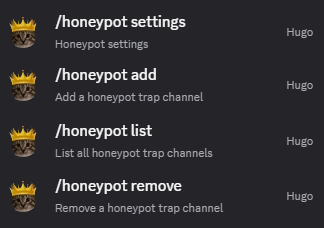
/honeypot to manage trap channels that should never be posted in by real members.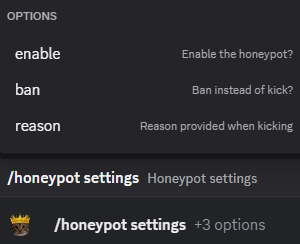
/honeypot settings to enable the feature and choose whether it kicks or bans.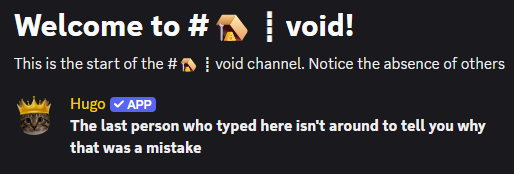

Community and member tools
Leveling
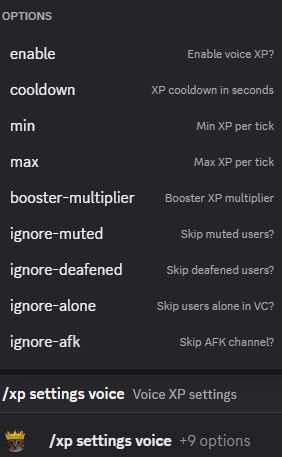
Use /xp to configure chat XP, voice XP, or a combined pool. Start with the enablement, cooldown, XP range, and ignored channels; then decide how Hugo should announce level-ups and answer level, rank, and leaderboard requests.
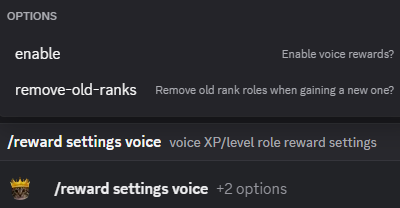
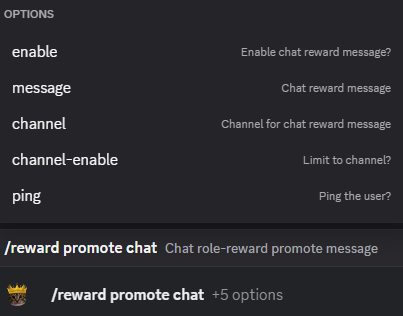
Use /reward to attach roles to levels. Enable chat or voice rewards, decide whether Hugo should remove old rank roles, then add each role-and-level pair with /reward add.

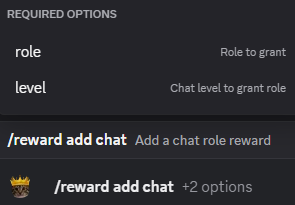
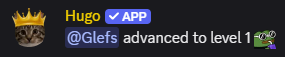
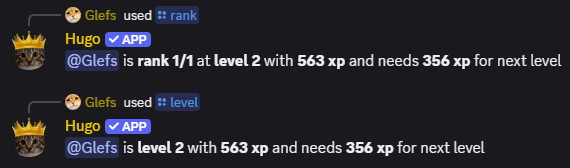
See chat and voice reward configuration examples
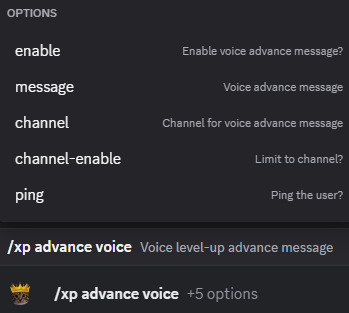
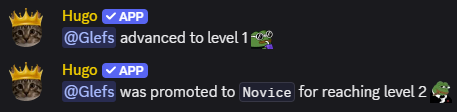
/set xp chat to correct progress manually when needed.Reputation
Use /reputation settings to turn Hugo's reputation system on or off, set the reputation cooldown, configure feedback messages, and decide whether reputation must be given by replying to someone. Use /reputation add, /reputation remove, /reputation edit, and /reputation list to manage the keywords that grant +rep.
Members can use /rep to check someone's reputation total and /repboard to view the server reputation leaderboard. Use /reputation rep and /reputation repboard to configure those member commands separately.
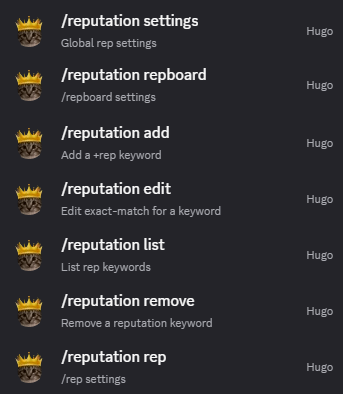
/reputation to manage the overall reputation system and its member commands.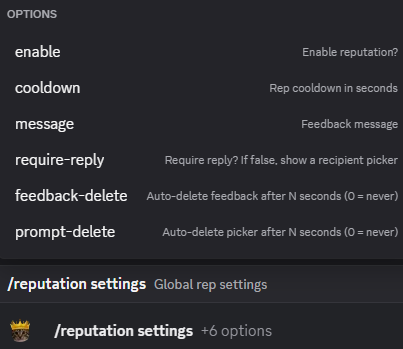
/reputation settings to control cooldowns, feedback messages, and how reputation can be given.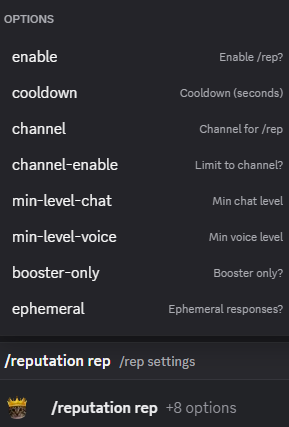
/reputation rep to control how members check reputation totals.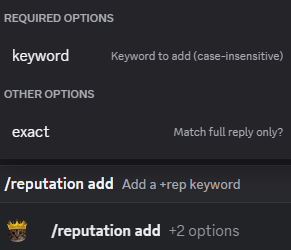
/reputation add to manage which keywords or triggers grant +rep.Awards
Use /awards settings to turn periodic awards on or off, choose the announcement channel, and set the weekly or monthly posting schedule. Hugo can rank members by messages sent, chat XP, voice XP, or reputation, then post the winners on a schedule or immediately with /awards post.
Each award category can show a configurable number of winners and optionally grant a winner role. You can preview the current period with /awards preview, list configured awards with /awards list, and exclude roles from winning with /awards exclude.
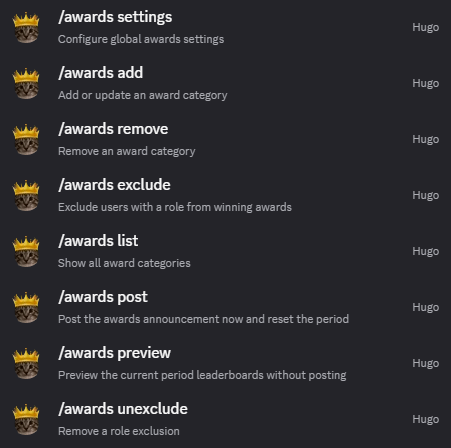
/awards to manage recurring winner posts based on server activity.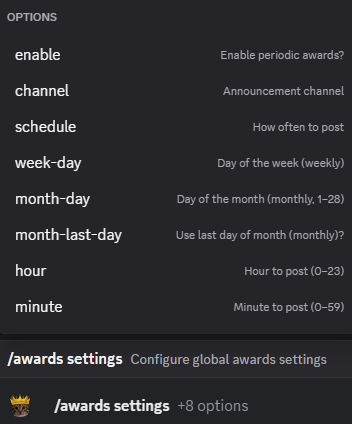
/awards settings to control the schedule, channel, and overall awards behavior.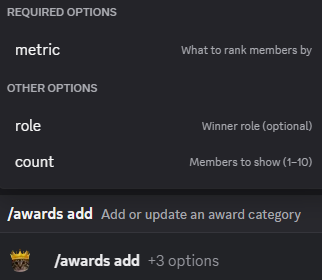
/awards add to define the award categories and winner criteria you want.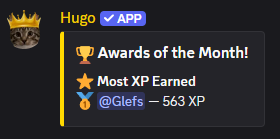
/awards post to publish the current winners immediately.Color Roles
The /color feature lets members choose their own name color from a color-role menu. Hugo comes with 50 preconfigured colors, so you can create a full color list without manually adding every color yourself.
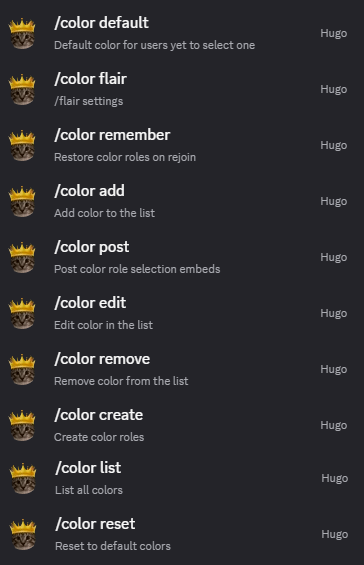
Use /color create to create the roles around a role anchor, then /color post to post the selection embeds. Use /color default to give users a fallback color before they choose one, and /color remember to restore color roles when members rejoin. You can still add, edit, remove, or reorder colors later if your server wants a custom palette.
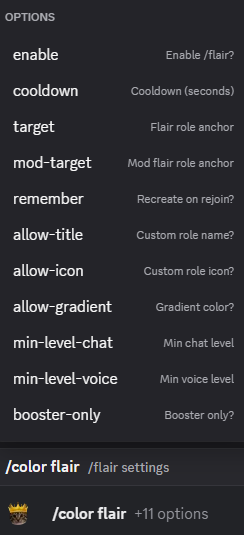
The /flair feature is the more personal version: users can create a personal role with their own hex RGB color, and if enabled, a custom role icon too. Use /color flair to tune who can use it, whether custom names or icons are allowed, and whether flair roles should be recreated on rejoin.
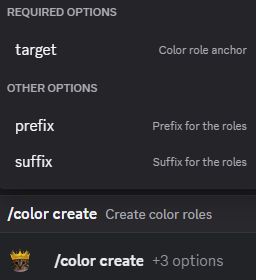
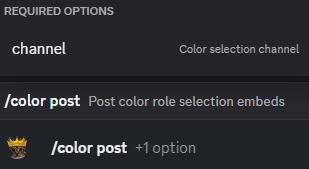
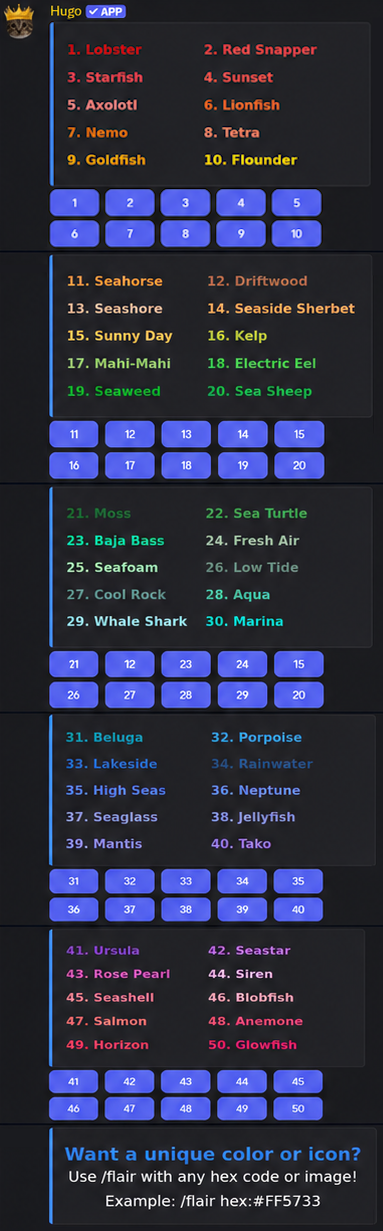
See color and flair administration screens
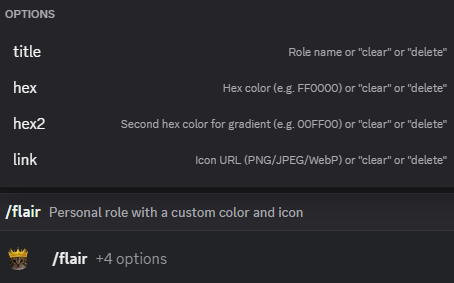
/flair creates a more personal role when the server enables it.Groups
The /group feature is for private channel access without creating a visible role for every private space. Instead of giving someone a role that other members can notice and ask about, Hugo stores a named group and applies the needed channel permissions directly for the users in that group.
This is useful when you want hidden channels for a small set of people, but you do not want a public-looking role that makes everyone wonder what it is for or why they do not have it too. It also avoids the tedious Discord admin work of opening every channel and manually adding or removing user permission overwrites one person at a time.
Use /group add-role to seed a group from a role and automatically add future members who gain it. Removing that role link does not revoke existing group access; remove members with revoke when access needs to be taken away.
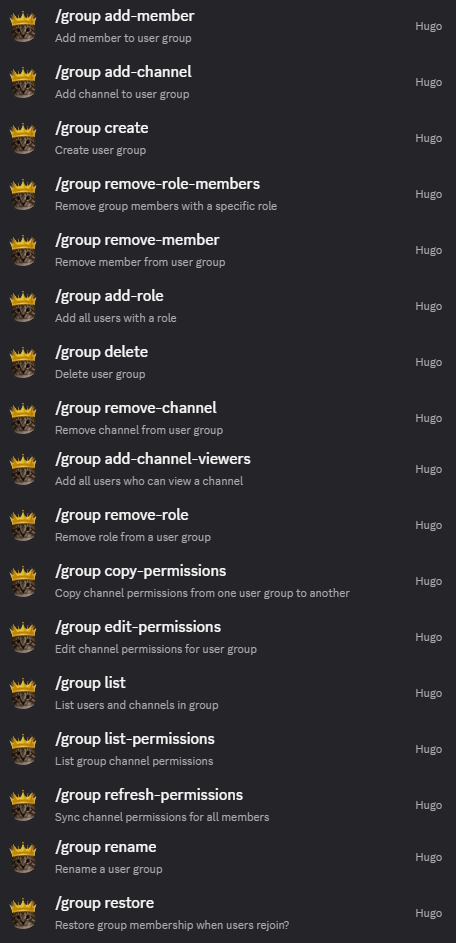
/group to create named private-access groups without exposing a visible server role for each one.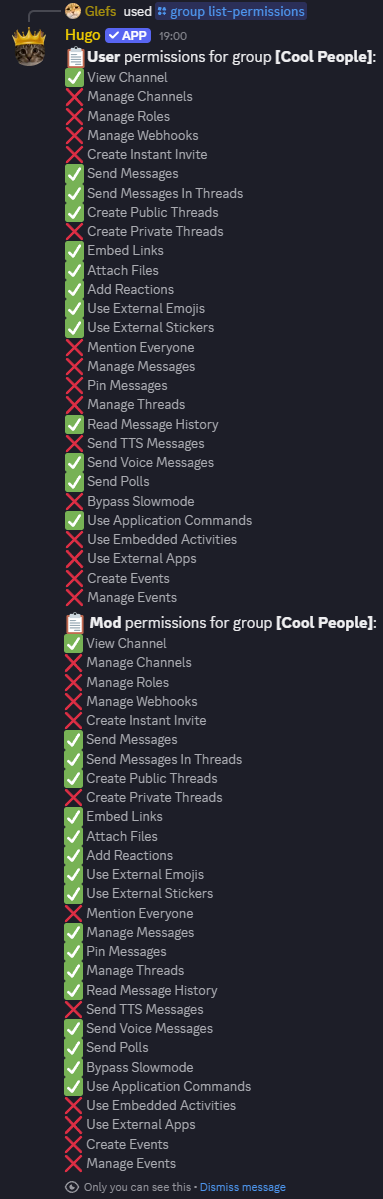
/group edit-permissions to control which channel permissions Hugo grants to members and moderators in that group.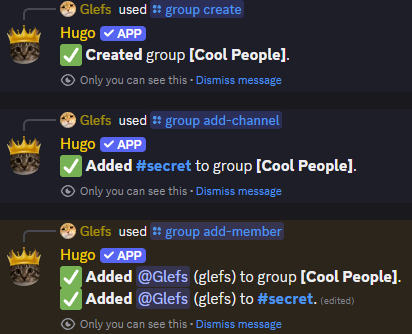
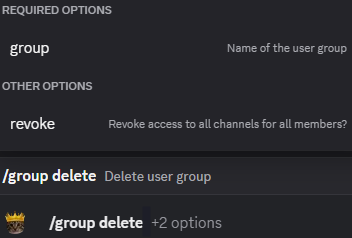
revoke to remove the group's direct channel access too. Leave it off only if you intentionally want existing permission overwrites to remain.Confessions
Users can submit anonymous confessions to a configured channel with /confess, and members can view, edit, and delete their own confessions with /confessions.
Use /confession confess and /confession confessions to control the confession channel, embed style, threads, author logging, cooldowns, max submissions per user, and level or booster requirements. Moderators can use /reveal when they need to identify the author of an anonymous confession or suggestion for moderation reasons.
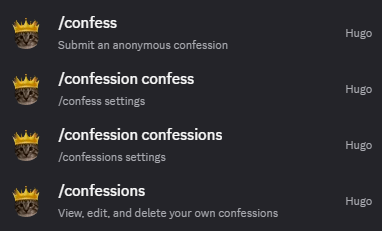
/confession to configure the anonymous confession system, including the posting channel, format, and moderation-related options.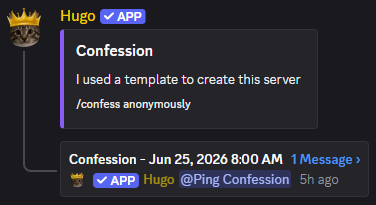
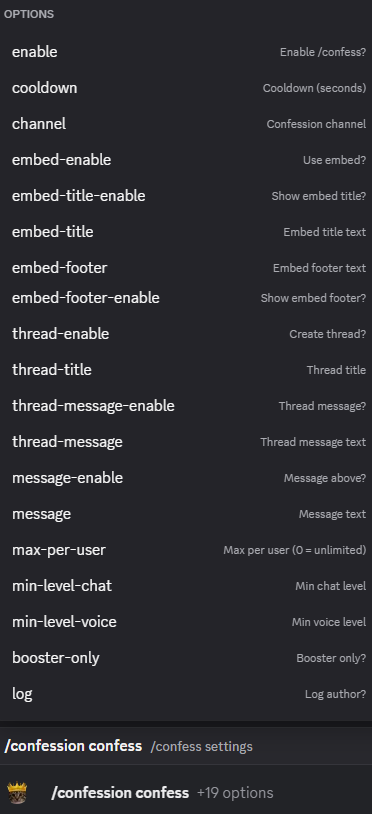
/confession confess to control the main confession posting flow and who can use /confess.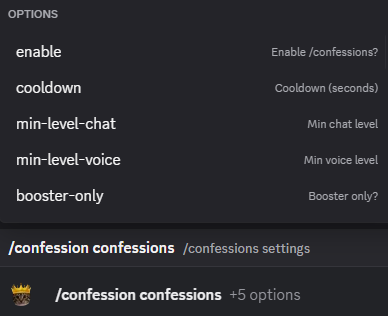
/confession confessions to control whether members can manage their own confession history with /confessions.Suggestions
Users can submit suggestions to a dedicated suggestion channel with /suggest, and members can view and delete their own suggestions with /suggestions.
Use /suggestion suggest and /suggestion suggestions to control the suggestion channel, voting reactions, discussion threads, message or embed style, optional author credit, anonymous submissions, cooldowns, per-user limits, and level or booster requirements. Moderators can use /reveal to identify an anonymous suggestion author when they need to handle abuse.
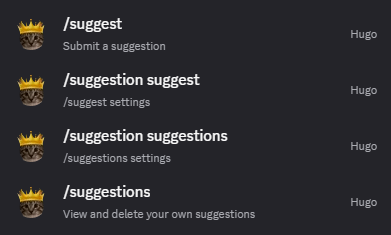
/suggestion to configure where suggestions are posted and how Hugo presents and moderates them.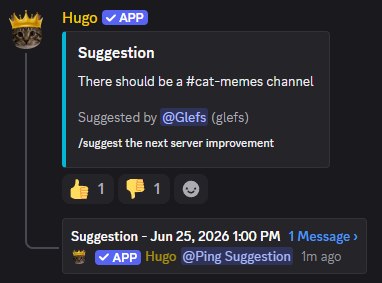
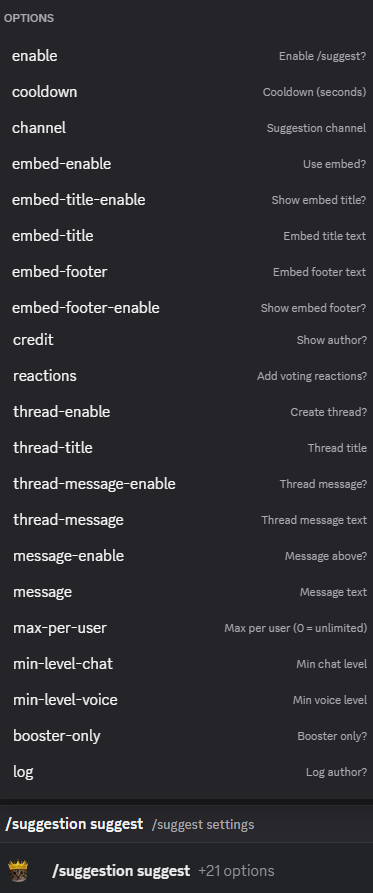
/suggestion suggest to control the main suggestion submission flow and who can use /suggest.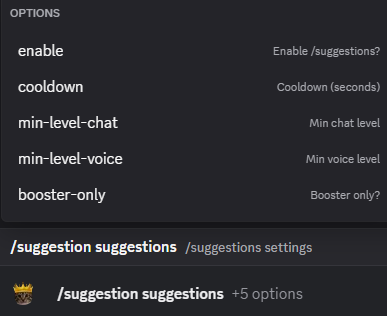
/suggestion suggestions to control whether members can review and delete their own submissions with /suggestions.Question of the Day (QOTD)
Use /qotd settings to turn automatic Question of the Day posts on or off, choose the questions channel, set the interval, and configure message, embed, thread, credit, and pending-pitch display options.
Members can use /pitch to submit question ideas. Use /qotd pitch to configure that member command separately. Moderators can use /pitches to review and manage those pitches, and /qotd subcommands such as add, bulk-add, queue, post, skip, move, remove, preview, and next to control what gets posted and when.
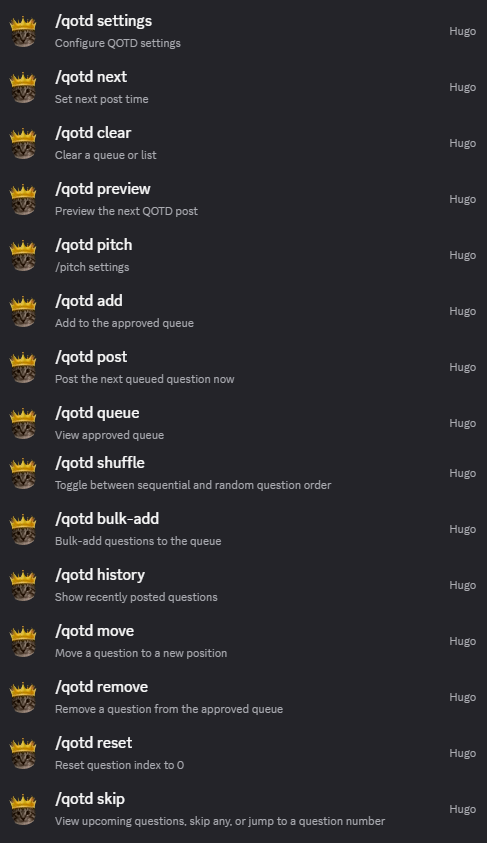
/qotd to manage the Question of the Day feature.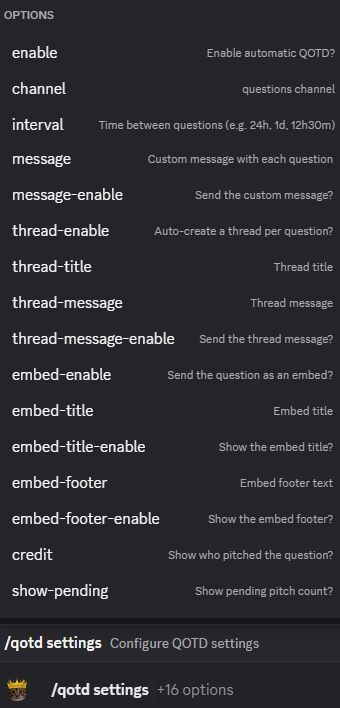
/qotd settings to configure the core QOTD options.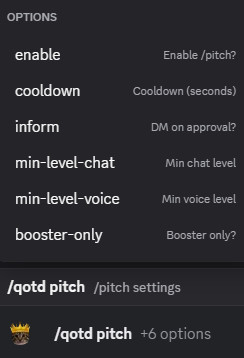
/qotd pitch to configure the pitch command separately.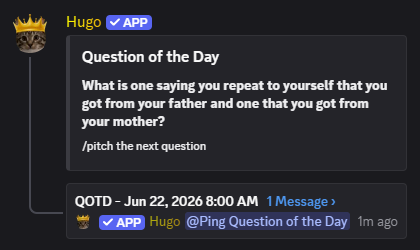
Starboard
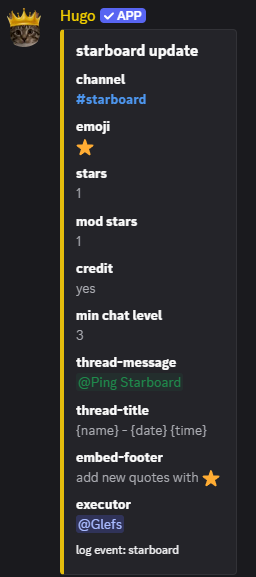
Use /starboard settings to turn the starboard on or off and highlight messages that receive enough star reactions. You can set the starboard channel, required stars, moderator-star threshold, ignored channels or categories, custom post text, embed formatting, thread creation, and whether the original author is credited.
Members can use /quotes to view and delete starboard entries for their own messages. Use /starboard quotes to configure that member command separately, including whether it is enabled, its cooldown, and any level or booster requirements.
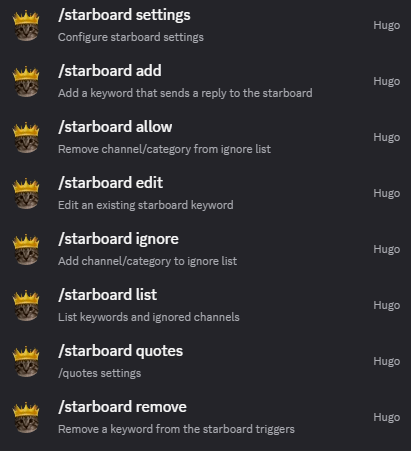
/starboard to manage starboard behavior.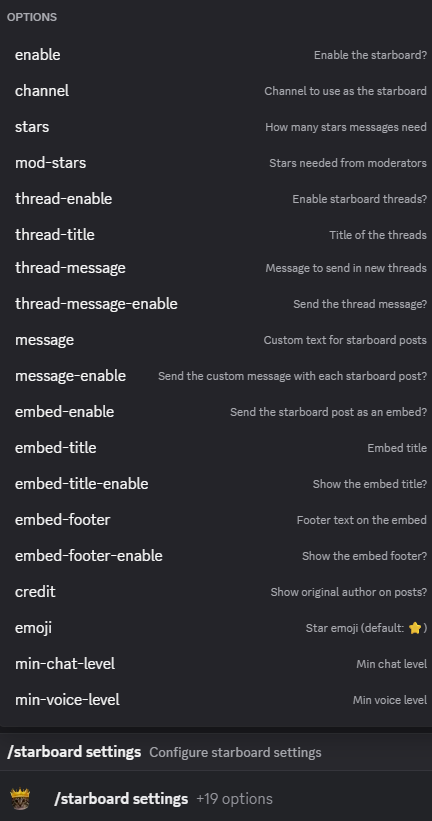
/starboard settings to configure the core starboard options.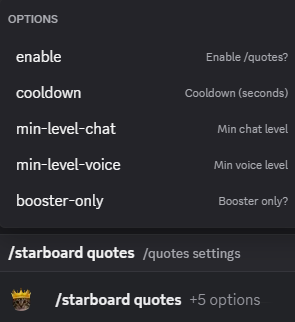
/starboard quotes to control the quotes command.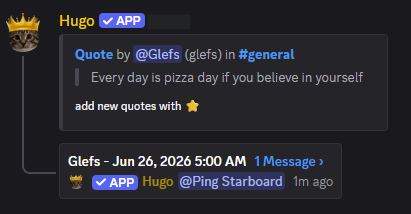
Reminders
Users can create reminders with flexible time formats like 2h 30m, 3mo, or 1 year 3 days using /remind, and members can view, edit, cancel, and search their own active reminders with /reminders.
Use /reminder remind and /reminder reminders to configure whether those member commands are enabled, their cooldowns, the allowed reminder channel, whether /remind replies are ephemeral, and level or booster requirements.
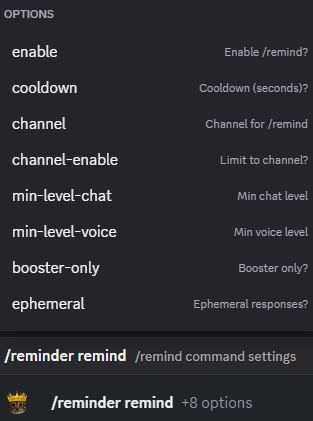
/reminder remind to control the remind command.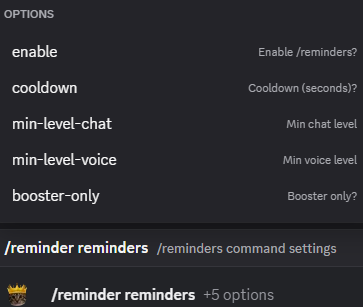
/reminder reminders to control the reminders command.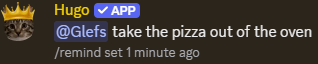
Birthdays
Users can set their birthday with /birthday. They can choose the day and month, optionally add a birth year if they want Hugo to show their age, and enable or disable birthday announcements for themselves.
Use /birthdays settings to turn birthday announcements on or off and control the announcement channel, birthday messages with or without age, optional birthday threads, thread messages, and embed title or footer text. Birthday announcements follow the server timezone configured in /settings.
Use /birthdays birthday to configure the /birthday member command itself, including whether it is enabled, its cooldown, whether responses are ephemeral, and any level or booster requirements.
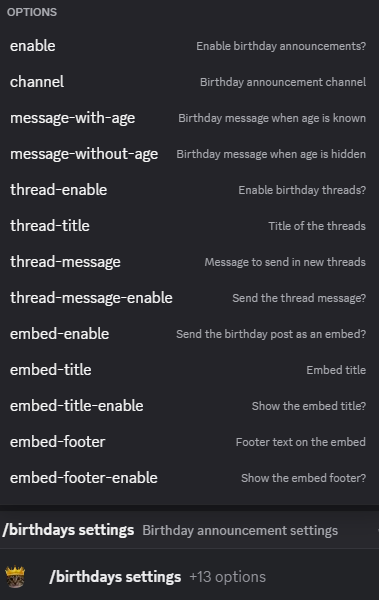
/birthdays settings to configure the core birthday options.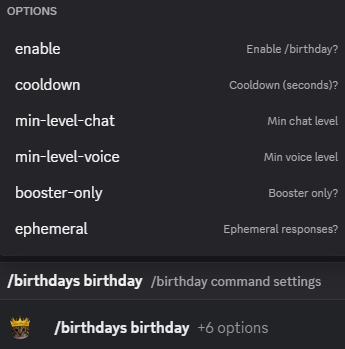
/birthdays birthday to control the birthday command.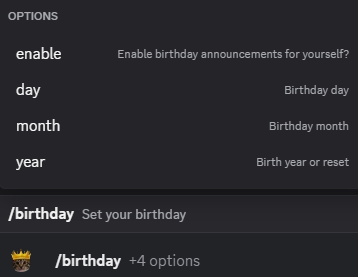
/birthday.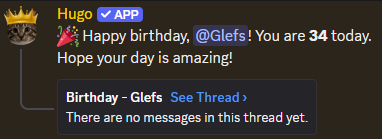
Stream Alerts
Use /twitch to watch Twitch streamers and post when they go live. Use /twitch settings to turn Twitch notifications on or off and set the notification channel and message, then add streamers by username or Twitch URL with /twitch add.
Use /youtube to watch YouTube channels and post when they upload a new video. Use /youtube settings to turn YouTube notifications on or off and set the notification channel and message, then add channels by channel ID, channel URL, or handle with /youtube add.
When you add a Twitch streamer who is already live or a YouTube channel that already has uploads, Hugo seeds the current stream/video so it does not immediately spam old notifications. It will notify on the next new live stream or upload.
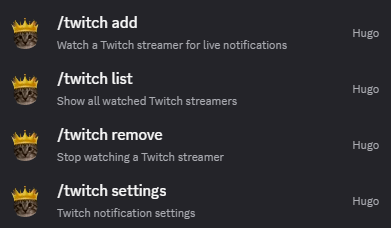
/twitch to manage Twitch alerts.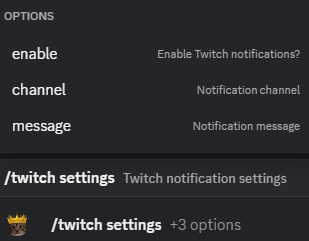
/twitch settings to configure Twitch alerts.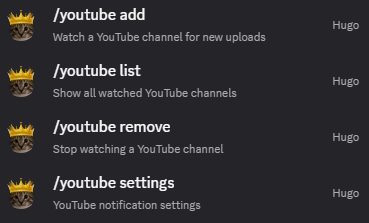
/youtube to manage YouTube alerts.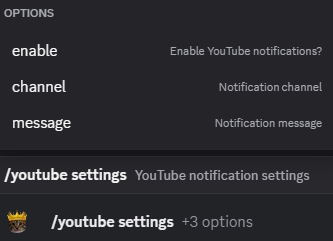
/youtube settings to configure YouTube alerts.Fun Commands
Use /fun to configure the smaller user-facing commands: /wisdom, /roll, /cat, and /fetch. Each one can be enabled or disabled, given a cooldown, and tuned separately.
You can make a fun command ephemeral, meaning only the person who ran the command sees the response. You can also make it booster-only, require a minimum chat or voice level, and for public replies, limit it to a specific channel so the command does not spread across the server.
Use /block to prevent a specific user from using one supported member command without disabling it for everyone else.
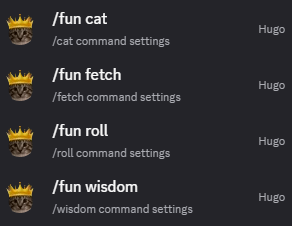
/fun to manage fun commands.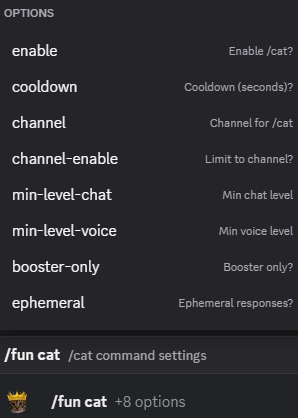
/cat.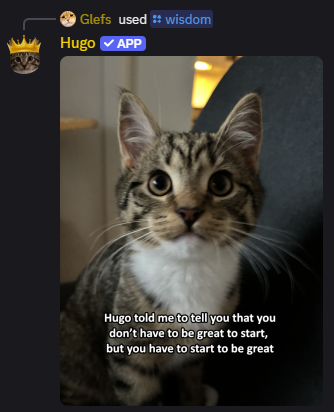
/wisdom command.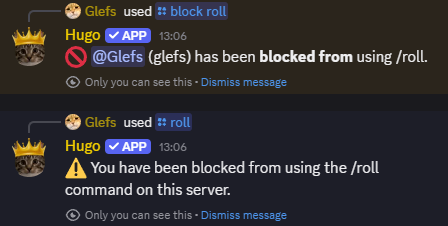
/block to restrict user access to commands.Build messages
Message Tools
Use /template to save reusable messages and embeds. Templates are useful when multiple features should send the same polished message, or when you want to build an embed once and reuse it in automessages, autoresponses, sticky messages, or other message-based features.
Use /echo to send a message as Hugo. This is useful for announcements, rules, formatted embeds, or any message that should come from the bot instead of a moderator's personal account.
Use /edit to edit a message Hugo sent, including one created through /echo or another Hugo feature. That lets you fix wording or update information without deleting and reposting the message.
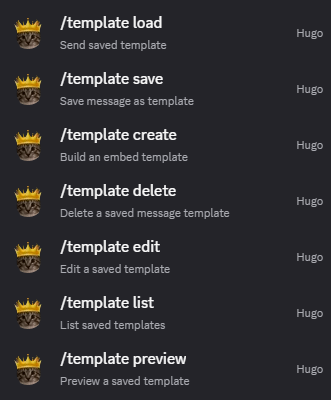
/template to manage templates.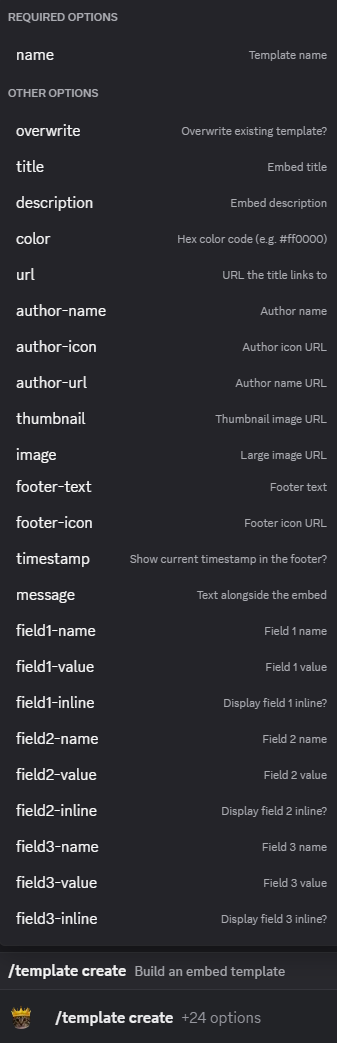
/template create.Reference
Use these pages when you need exact command options, visuals, policies, or external support.